Introduction
Welcome! If you're looking to send and receive text messages through SignalWire, you've come to the right place. This guide is designed specifically for customers who want to leverage SMS capabilities without needing to write complex code or have a development background.
Whether you're running a small business that needs to receive customer inquiries via text, managing appointment reminders, or building communication workflows, SignalWire makes it possible to handle SMS in ways that fit your specific needs—even if you've never worked with messaging APIs before.
Before your SignalWire phone numbers can send and receive SMS messages, they need to go through certain verification processes. Specifically:
- 10DLC numbers (standard local numbers) require registration through the Campaign Registry
- Toll-free numbers require Toll-Free Verification
These processes help carriers prevent spam and ensure legitimate business use of SMS. For detailed information on how to complete these verification steps, please refer to our Campaign Registry Documentation and Toll-Free Verification Documentation.
Once your numbers are verified and approved, you're ready to start using SMS! This guide will focus on the practical side: what you can actually do with incoming and outgoing text messages.
Understanding Your Options: Two Main Approaches
When it comes to handling incoming SMS messages with SignalWire, there are two primary approaches, each suited to different needs:
Simple SMS Forwarding
When someone texts your SignalWire number, that message gets automatically forwarded to your personal cell phone (or multiple phones). You receive it just like any other text message and can reply directly.
Best for: small teams, low volume, minimal setup
Platform Integration via Webhooks
Instead of forwarding messages to a phone, you connect incoming SMS to other platforms—CRMs, helpdesks, custom apps. Build automated workflows, store history, trigger actions based on content.
Best for: businesses, automation, CRM integration
Let's explore each approach in depth.
Use Case 1: Forwarding Incoming SMS to Your Personal Phone
Who this is for: Business owners, solo practitioners, small teams, or anyone who simply wants to receive text messages on their personal device without complexity.
How it works: When someone sends a text to your SignalWire number, SignalWire automatically forwards that message to one or more cell phone numbers you specify. You receive the text just like any other message, but when you reply from your personal phone, your response is sent from your personal phone number—not your SignalWire business number.
Setting Up SMS Forwarding
SignalWire uses cXML (compatibility XML) scripts to automate this forwarding process. These are pre-built scripts you can use without writing any code yourself.
Copy the forwarding script
Use the cXML script below. It automatically captures the sender's number, your SignalWire number, and the message body, then forwards it to your personal mobile number.
<?xml version="1.0" encoding="UTF-8"?>
<Response>
    <Message to="+1xxxxxxxxxx">
        You received a message from: {{From}} to SignalWire number: {{To}}.
        The message is: "{{Body}}"
    </Message>
</Response>
to number
Replace +1xxxxxxxxxx with your personal mobile number in E.164 format (e.g. +12125551234). This is the number that will receive the forwarded messages.
Create a cXML Resource in your SignalWire Space
In your SignalWire dashboard, go to My Resources and add a new resource. Select Script → cXML, set it to handle Messaging, choose Inline Script, and paste your updated script.
Attach the resource to your phone number
Go to Phone Numbers, select your SignalWire number, scroll to the Messaging section, and assign the resource you just created.
Done!
Incoming texts will now be forwarded automatically. Setup typically takes under 5 minutes.
- No technical knowledge required
- Receive texts on the device you already use
- Reply directly from your phone
- Quick setup — usually under 5 minutes
- Perfect for low-volume messaging needs
Limitations to Consider
- Limited automation capabilities
- No integration with other business tools
- No centralized message history
- Harder to manage with a team
- Replies come from your personal phone number, not your business number — recipients see your personal number, not your SignalWire number
- Not ideal if maintaining the business number in conversations matters — forwarding won't preserve that
- Not suitable for professional customer service — if you need two-way conversations on your business number, use webhooks instead
If you need more sophisticated functionality—like integrating with your CRM, triggering automated responses, building custom workflows, or maintaining professional two-way conversations under your business phone number—explore the webhook approach below.
Use Case 2: Integrating SMS into Platforms and Applications
Who this is for: Businesses that want to integrate SMS into their existing software systems, build automated workflows, or create custom messaging experiences.
Common scenarios include:
- Sending incoming SMS messages to your CRM (Salesforce, HubSpot, Zoho)
- Routing messages to your helpdesk or ticketing system (Zendesk, Freshdesk)
- Building custom applications that respond to text messages automatically
- Creating workflows that trigger actions based on message content
- Storing and analyzing message data in your own database
- Managing team-based SMS conversations through a unified platform
For these use cases, you'll use webhooks. While this sounds technical, the concept is straightforward, and SignalWire makes it easy to set up.
What Is a Webhook?
Think of a webhook as a notification system. When something happens (like receiving an incoming text message), SignalWire immediately sends information about that event to a web address (URL) that you specify. This is called an "HTTP callback."
Unlike traditional methods where your application would constantly "check" SignalWire for new messages, webhooks deliver information instantly as events happen. This means real-time delivery (within milliseconds), no wasted resources, and easy scalability to high message volumes.
Status Callbacks: The Dual Purpose of Webhooks
Webhooks don't just receive incoming messages — they can also receive status callbacks, which are updates about the delivery status of outgoing messages you've sent.
Incoming Messages
When someone texts your SignalWire number, the message content and metadata are sent to your webhook in real time.
Delivery Receipts (DLR)
When you send an outgoing SMS, you get status updates confirming whether the message was delivered, failed, or is still in progress.
Setting Up Your Webhook in SignalWire
SignalWire uses a two-step process: first you create a Resource that contains your webhook configuration, then you attach that Resource to your phone number.
- A webhook URL endpoint that can receive HTTP POST requests
- The URL must be publicly accessible on the internet
- Must use HTTPS (secure connection)
Step 1: Create Your Webhook Resource
Log into Your SignalWire Space
Navigate to your SignalWire dashboard and sign in with your credentials.
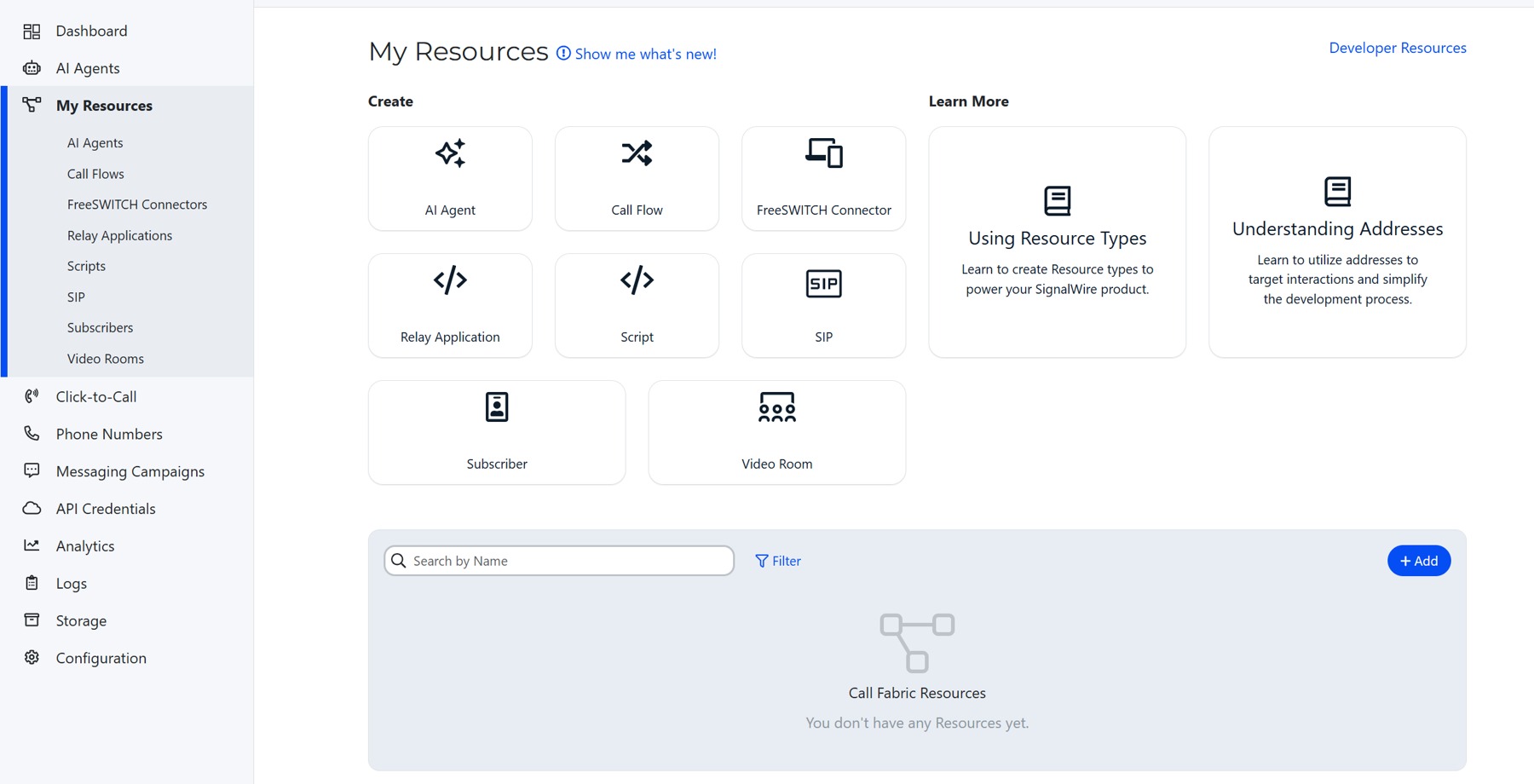
Navigate to My Resources
From the main dashboard, locate and click on "My Resources" in the navigation menu.
Add a New Resource
Click the "Add" button to create a new resource.
Select Script Type
When prompted to choose a resource type, select "Script."
Choose SWML
Select "SWML" (SignalWire Markup Language). Use cXML only if your integration specifically requires it.
Configure the Resource Settings
- Used For: Select "Messaging"
- Handle Calls Using: Select "External URL"
Enter Your Webhook URLs
- Primary Script URL: Paste your webhook URL here. This is where incoming messages will be sent.
- Status Change Webhook: Paste the same webhook URL here. This is where delivery receipts will be sent.
You can use the same URL for both fields, or different URLs if you want to handle them separately. Both must begin with https://.
Create the Resource
Click "Create" to save your new webhook resource.
Step 2: Attach the Resource to Your Phone Number
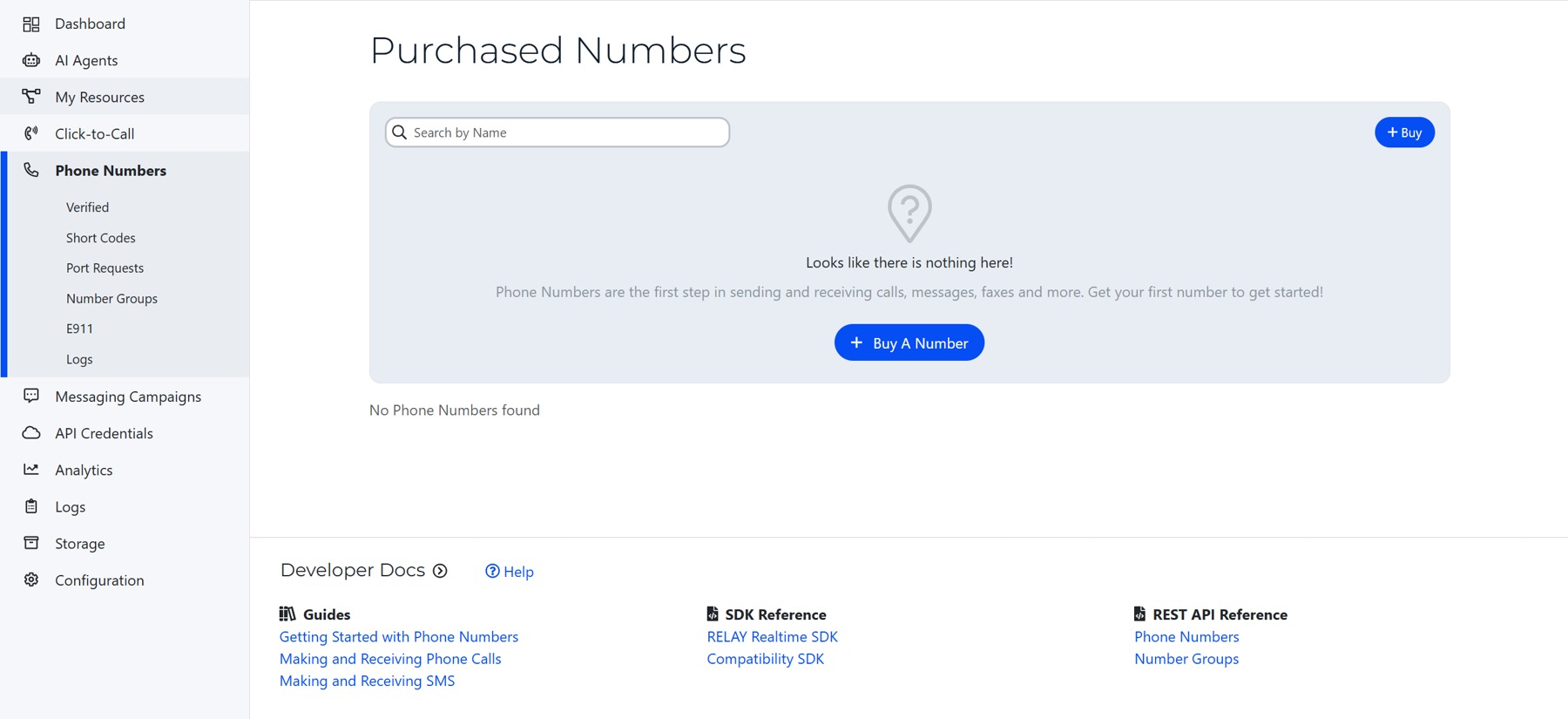
Navigate to Phone Numbers
From the main dashboard, go to the "Phone Numbers" section.
Select Your Phone Number
Click on the specific phone number you want to configure for SMS webhook integration.
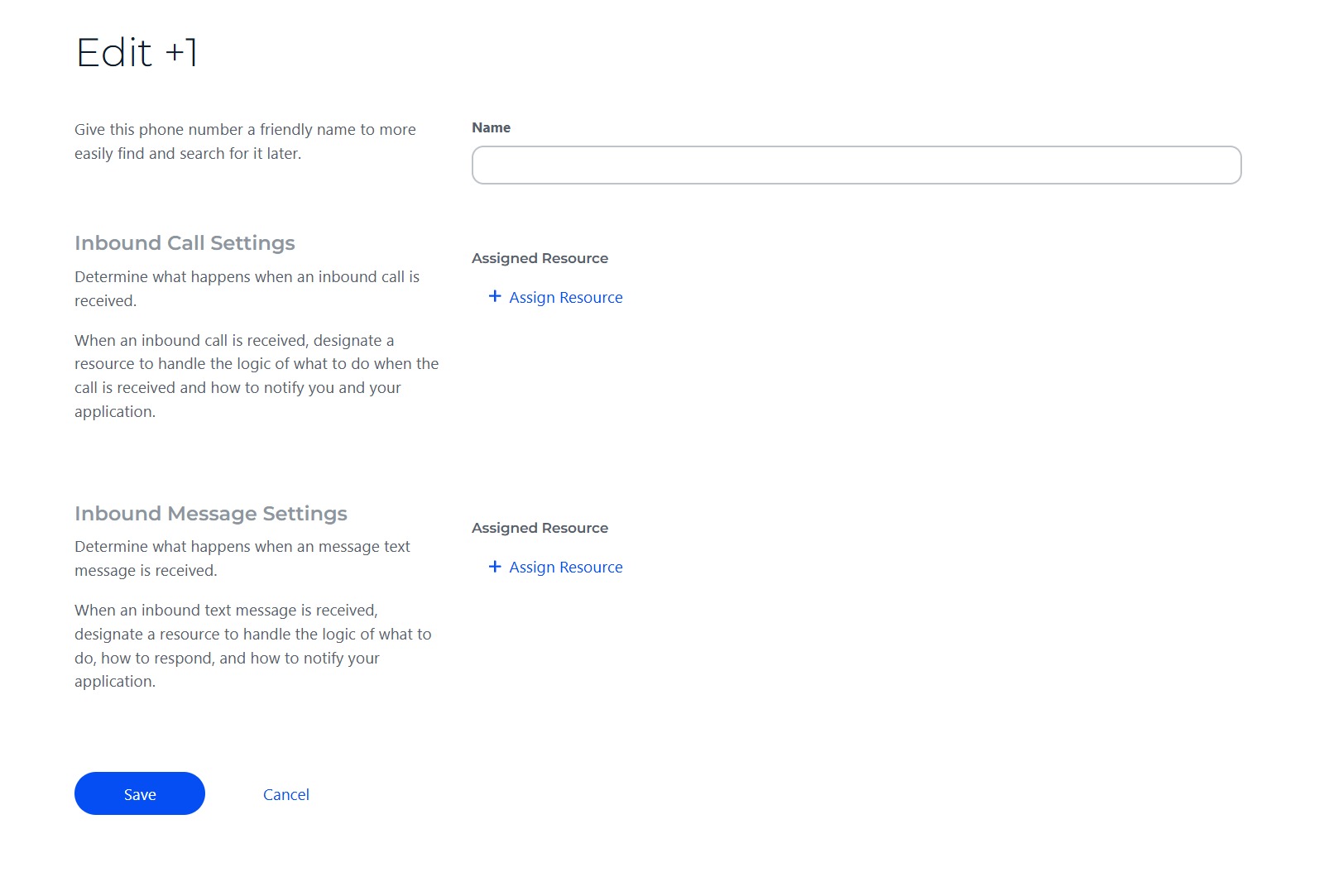
Locate the Messaging Section
Scroll down to find the "Messaging" section on the phone number configuration page.
Add Your Resource
In the Messaging section, select the webhook resource you just created from the dropdown.
Save Your Configuration
Click "Save" or "Update" to apply your webhook configuration to this phone number.
Test Your Webhook
Send a test message to your SignalWire number from your personal phone. If everything is configured correctly, your webhook should receive the message data within seconds.
- HTTPS is required: HTTP URLs will not work.
- Authentication: If your endpoint requires an API key, check your third-party integration docs for how to pass it.
- Response time: Your endpoint should respond within 10 seconds or the request may time out.
- Reusing resources: Once created, a webhook resource can be attached to multiple phone numbers without recreating it.
Webhook Purposes: A Deep Dive
Now that your webhook is configured, let's explore what data you'll receive and when. Your webhook serves two distinct purposes: receiving incoming messages and receiving delivery status updates for outgoing messages.
Purpose 1: Receiving Incoming SMS Messages
When someone sends a text message to your SignalWire number, SignalWire immediately sends an HTTP POST request to your webhook URL with all the relevant information about that message.
What Data You Receive
- From: The phone number that sent the message (E.164 format, e.g.
+12125551234) - To: Your SignalWire phone number that received the message
- Body: The actual text content of the message
- MessageSid: A unique identifier for this specific message
- AccountSid: Your SignalWire account identifier
- NumMedia / MediaUrl: Count and URLs for any attached media (MMS)
- Timestamp: When the message was received
Example Incoming Message Payload
{
  "From": "+12125551234",
  "To": "+13105555678",
  "Body": "Hello, I'd like to schedule an appointment",
  "MessageSid": "SM1234567890abcdef1234567890abcdef",
  "AccountSid": "AC1234567890abcdef1234567890abcdef",
  "NumMedia": "0",
  "FromCity": "NEW YORK",
  "FromState": "NY",
  "FromZip": "10001",
  "FromCountry": "US"
}
What You Can Do With This Data
- Display the message in your CRM or helpdesk interface
- Store the message in your database for record-keeping
- Trigger automated responses based on message content or keywords
- Route the message to the appropriate team member or department
- Create a new support ticket or customer record
- Send notifications to your team via email or Slack
- Analyze message sentiment or extract important information
Most third-party integrations handle this for you. If you're building a custom solution, you have two options: (1) use cXML or SWML instructions in your webhook response to reply directly, or (2) use SignalWire's REST API to send a reply message programmatically.
Purpose 2: Receiving Delivery Receipts (DLR)
When you send an outgoing SMS through SignalWire, you probably want to know whether that message was successfully delivered. SignalWire tracks its journey through the carrier network and sends status updates to your webhook as the message status changes.
Message Status Lifecycle
Accepted & queued
Transmitting to carrier
Carrier accepted
Confirmed on device
if delivery could not be completed
What Data You Receive in Status Callbacks
- MessageSid: Matches the ID from when you originally sent the message
- MessageStatus: Current status (delivered, failed, undelivered, etc.)
- To / From: Recipient and sender phone numbers
- ErrorCode / ErrorMessage: If the message failed, a code and description of why
- Timestamp: When this status update occurred
Example Delivery Receipt Payload
{
  "MessageSid": "SM1234567890abcdef1234567890abcdef",
  "MessageStatus": "delivered",
  "To": "+12125551234",
  "From": "+13105555678",
  "AccountSid": "AC1234567890abcdef1234567890abcdef",
  "EventType": "message-status"
}
Why Delivery Receipts Matter
- Confirming successful delivery: Know that your important messages actually reached recipients
- Identifying delivery issues: Quickly spot problems with specific numbers or carriers
- Compliance and record-keeping: Maintain proof of message delivery for regulatory purposes
- Customer service: Verify whether a customer received a message they claim they didn't get
- Automated retry logic: Automatically resend messages that failed to deliver
Distinguishing Incoming Messages from Status Callbacks
Since both types of data arrive at the same webhook URL, check for these fields to tell them apart:
- Incoming messages will have a
Bodyfield containing the message text - Status callbacks will have a
MessageStatusfield and typically anEventTypefield set to"message-status"
Common Webhook Errors and Troubleshooting
While webhook configurations are generally straightforward, issues can occasionally occur. For a comprehensive guide to common webhook errors, detailed explanations of what went wrong, and step-by-step solutions, please refer to SignalWire's Common Webhook Errors documentation. This resource covers everything from timeout errors to SSL certificate issues and best practices to keep your webhooks running smoothly.
Conclusion
You now have a comprehensive understanding of how to use SMS with SignalWire, whether you need simple message forwarding or sophisticated platform integration.
- For simple needs: Use SWML scripts to forward incoming SMS to your personal phone with minimal setup
- For integration needs: Use webhooks to connect SMS with your applications and platforms
- Webhooks serve dual purposes: They receive both incoming messages and delivery status updates for outgoing messages
- Proper configuration is crucial: Follow the setup steps carefully and use HTTPS with valid SSL certificates
- Troubleshooting is straightforward: Most webhook errors fall into common categories with well-known solutions
Whether you're just getting started with SMS or building sophisticated messaging workflows, SignalWire provides the flexibility and power you need. If you encounter issues not covered in this guide, don't hesitate to reach out to SignalWire support.
Happy messaging!